Elements
Elements are instances of components you manage in the canvas. An Element can be as simple as a single button, or a complex section comprising of many panels, images, and text.
Custom element name and ID
Name an element by selecting it and changing the default name at the top of the panels sidebar. Custom names must be alphanumeric and cannot contain any spaces.
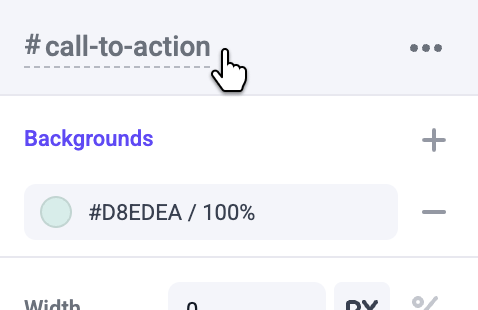
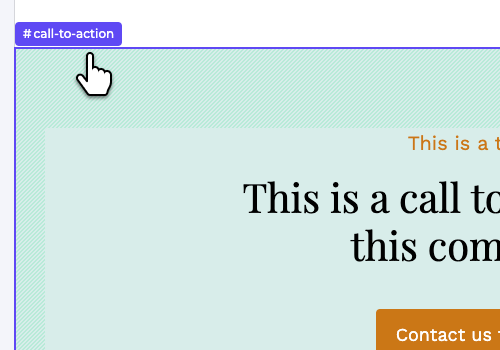
A custom name will be displayed in breadcrumbs, also making it easier to discern between nested boxes.
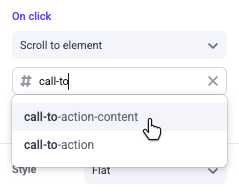
Elements with custom names can also be scrolled to with buttons, images, and text links. All elements with custom names will appear in the scroll to dropdown found in on click panels.
Custom names also serve as IDs added to the element’s HTML that can be targeted by custom CSS and JavaScript.
Element actions
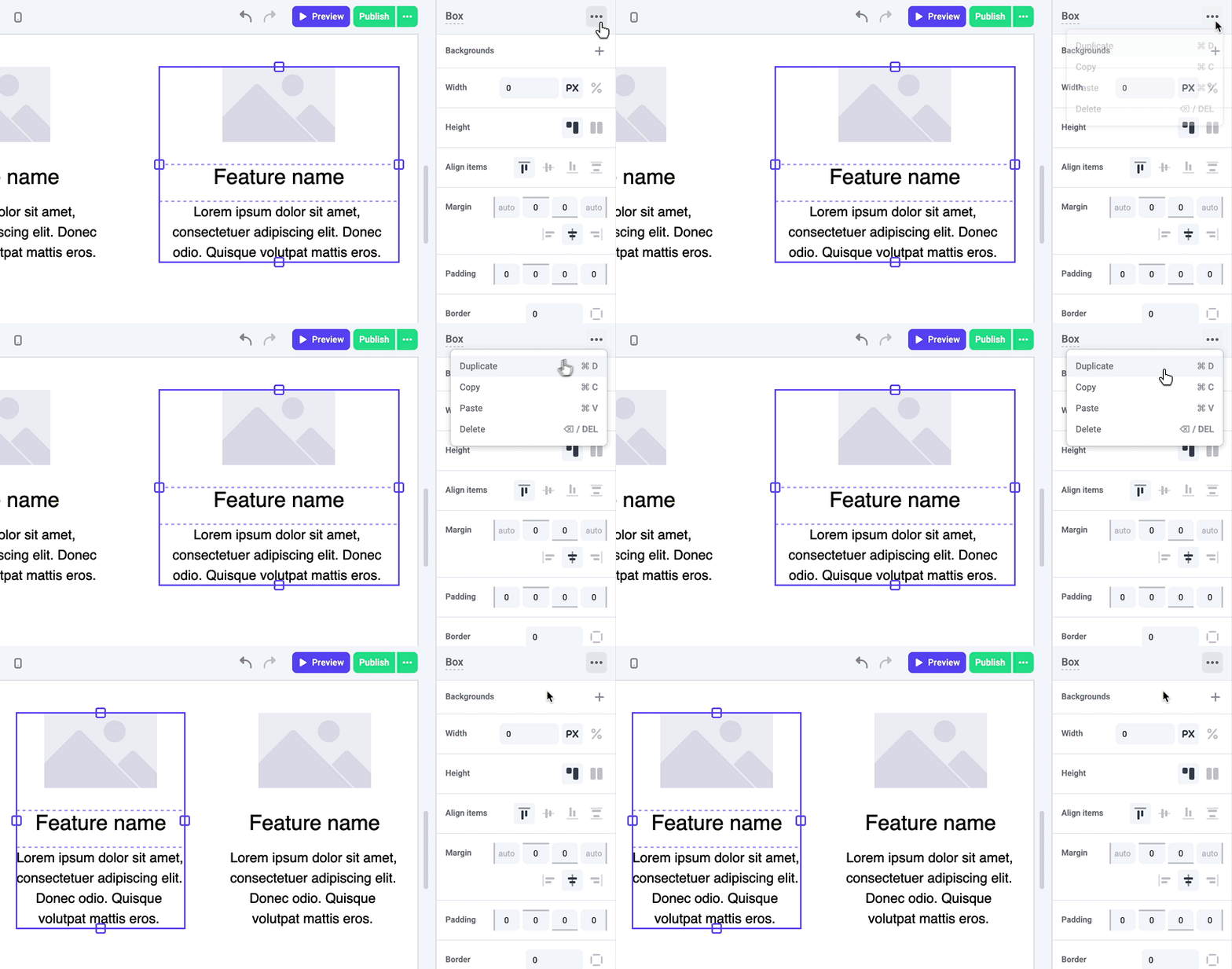
Element actions can be found at the top right of the panels sidebar or by using keyboard shortcuts.
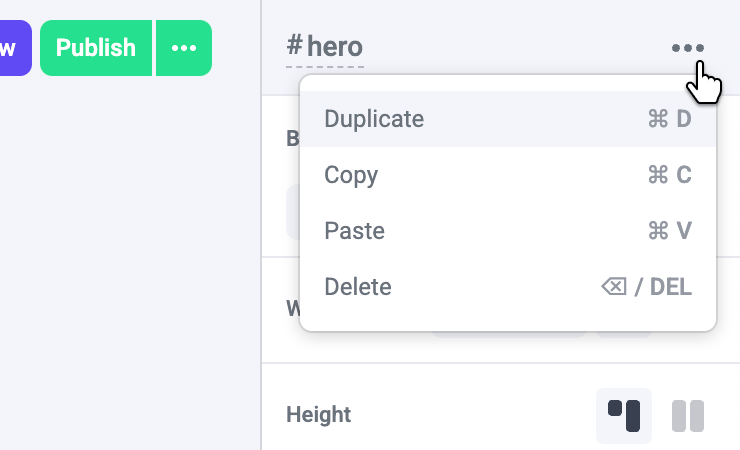
Duplicating an element or pressing ⌘ + D creates an exact copy, including nested elements, either below or next to the original.
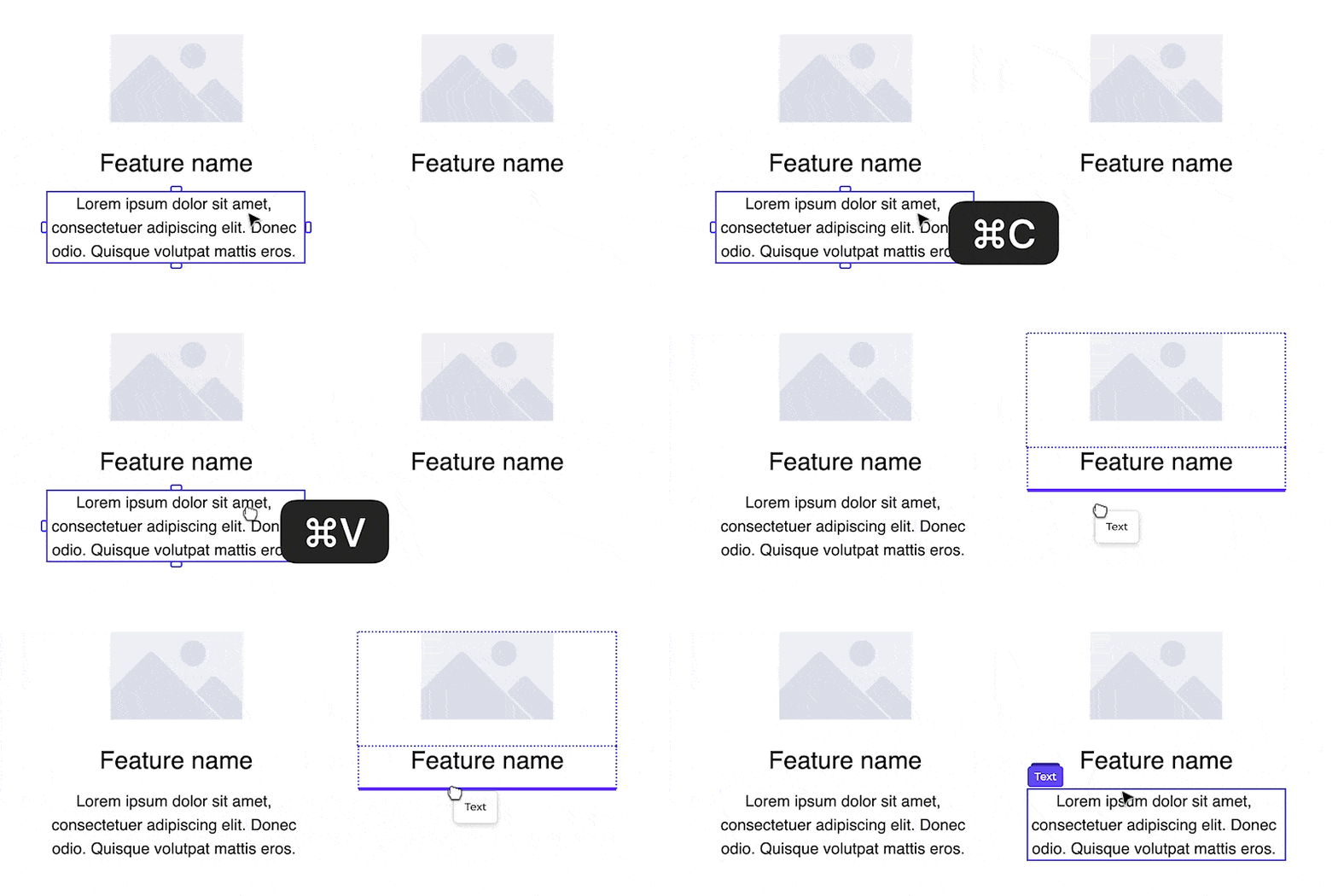
Copy an element or press ⌘ + C to save it to your clipboard. When pasting ⌘ + V, you will be able to select exactly where to place the copied element, similar to sorting.
You can delete any selected element by pressing delete or backspace.
