registerComponent

Adds your components to the Makeswift builder.

Arguments

component
ComponentRequired

Your component to be registered. This can be a React component or a function.

options
objectRequired

Options for site version and locale.

type
stringRequired

A unique string that identifies the component for Makeswift to render. Don’t change the type once you use the component in the Makeswift builder.

If this value changes after you use the component in the Makeswift builder, the component will appear as a “Component not found” block. To fix this, restore the type to the original value, or delete this component and re-add add it to the page.
label
stringRequired

The label shown in the Makeswift builder.

description
string

The description shown in the Panel of the Makeswift builder. This can be written in Markdown format. Added in v0.24.8.

icon
Icon

The icon shown in the Makeswift builder. You can find all available icons in the icons list section.

hidden
boolean

A boolean that determines whether or not this component will be displayed in the Component Tray.

builtinSuspense
boolean

A boolean that determines whether or not this component will be wrapped in a built-in <Suspense> boundary. Defaults to true. Set this to false if your component already includes its own <Suspense> boundary.

Added in v0.26.0.

props
Record<string, Control>Required

An object mapping prop names to Makeswift controls.

Examples

Registering a box

This example shows how to register a Box component. 'box' is the value for type, which must be unique, as Makeswift uses this value to identify the component. This value shouldn’t change once you use the component in the Makeswift builder. 'Box' is the label, which appears in the Makeswift builder. The example applies a Style control to the className prop.

makeswift/components.tsx
1import { Style } from "@makeswift/runtime/controls";
2
3import { runtime } from "./runtime";
4
5function Box({ className }) {
6 return <div className={className}>I'm a box!</div>;
7}
8
9runtime.registerComponent(Box, {
10 type: "box",
11 label: "Box",
12 props: {
13 className: Style({ properties: Style.All }),
14 },
15});

Creating sections

This example shows how to register a Cube and a Sphere component under a “Visuals” section. In each components’ label, use slashes to separate the section name and component name. In the Makeswift builder, both components appear under the same Visuals collapsible section:
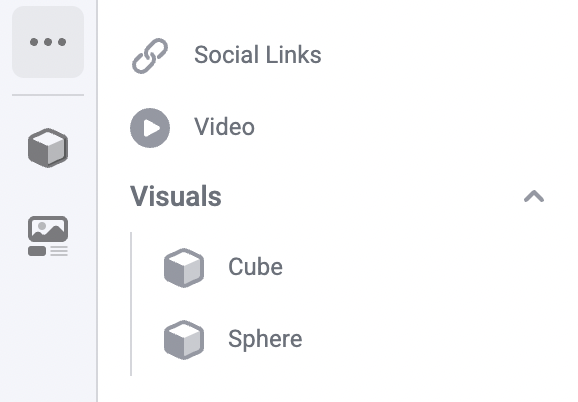
Screenshot of registered component sections
makeswift/components.tsx
1import { Style } from "@makeswift/runtime/controls";
2
3function Cube({ className }) {
4 return <div className={className}>Cube!</div>;
5}
6
7function Sphere({ className }) {
8 return <div className={className}>Sphere!</div>;
9}
10
11runtime.registerComponent(Cube, {
12 type: "cube",
13 label: "Visuals/Cube",
14 props: {
15 className: Style({ properties: Style.All }),
16 },
17});
18
19runtime.registerComponent(Sphere, {
20 type: "sphere",
21 label: "Visuals/Sphere",
22 props: {
23 className: Style({ properties: Style.All }),
24 },
25});

Overriding the built-in Suspense boundary

By default, the Makeswift runtime wraps registered components in a built-in <Suspense> boundary to transparently enable efficient server-side streaming and asynchronous data fetching. If your component already includes its own <Suspense> boundary, you can disable the built-in one by setting the builtinSuspense option to false:

1import { TextInput } from "@makeswift/runtime/controls";
2import { runtime } from "./runtime";
3
4function Discography({ artistId }: { artistId?: string }) {
5 return (
6 <>
7 <h2>Discography</h2>
8 {/* component's own Suspense boundary with a fallback */}
9 <Suspense fallback={<div>Loading...</div>}>
10 <AlbumList artistId={artistId} />
11 </Suspense>
12 </>
13 );
14}
15
16runtime.registerComponent(Discography, {
17 type: 'section-discography',
18 label: 'Discography',
19 builtinSuspense: false, // disable the built-in Suspense boundary
20 props: {
21 artistId: TextInput({ label: 'Artist ID' }),
22 },
23});

Adding custom icons

This example shows how to register an ImageGallery component with a custom icon. We import ComponentIcon from @makeswift/runtime and pass ComponentIcon.Gallery as the icon for our component.

You can find all available icons in the icons list section.

In the builder component tray, we can see our component with the selected icon.
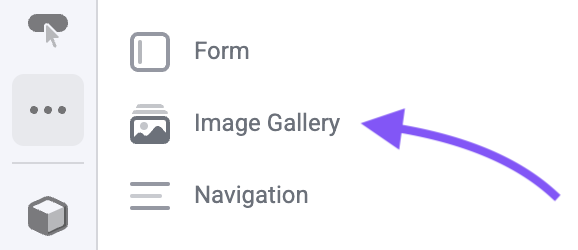
Screenshot of registered component icons
makeswift/components.tsx
1import { Style } from "@makeswift/runtime/controls";
2import { ComponentIcon } from "@makeswift/runtime";
3
4import { runtime } from "./runtime";
5
6function ImageGallery({ className }) {
7 return <div className={className}>I'm an image gallery!</div>;
8}
9
10runtime.registerComponent(Cube, {
11 type: "image-galley",
12 label: "ImageGallery",
13 icon: ComponentIcon.Gallery,
14 props: {
15 className: Style({ properties: Style.All }),
16 },
17});

Adding a description

This example shows how to add a Circle component with a rich description. We can define a description string using markdown formatting, and pass it into the component description field.

1const mdDescription = `
2# This is a larger heading
3
4This is some text at the top of here
5
6[![robot](https://plus.unsplash.com/premium_photo-1738614647383-0435fcb26a55?w=500&auto=format&fit=crop&q=60&ixlib=rb-4.1.0&ixid=M3wxMjA3fDB8MHxleHBsb3JlLWZlZWR8NHx8fGVufDB8fHx8fA%3D%3D)](https://www.youtube.com/watch?v=dQw4w9WgXcQ)
7
8## This is a smaller heading
9
10This is a **description** about this component, click to [learn more](https://www.youtube.com/watch?v=dQw4w9WgXcQ).
11* First Item
12* Second item
13
14This is a line with some \`\`<code/>\`\`
15`
makeswift/components.tsx
1import { Style } from "@makeswift/runtime/controls";
2
3import { runtime } from "../../../../../makeswift/runtime";
4
5function Circle({ className }) {
6 return <div className={className}>I'm a circle!</div>;
7}
8
9runtime.registerComponent(Circle, {
10 type: "circle-tester",
11 label: "Custom / Circle",
12 icon: "chats",
13 hidden: false,
14 description: mdDescription,
15 props: {
16 className: Style({ properties: Style.All }),
17 },
18});

In the Properties Sidebar, we can see an info icon next to the component label. Hover over the label to open the description tooltip.
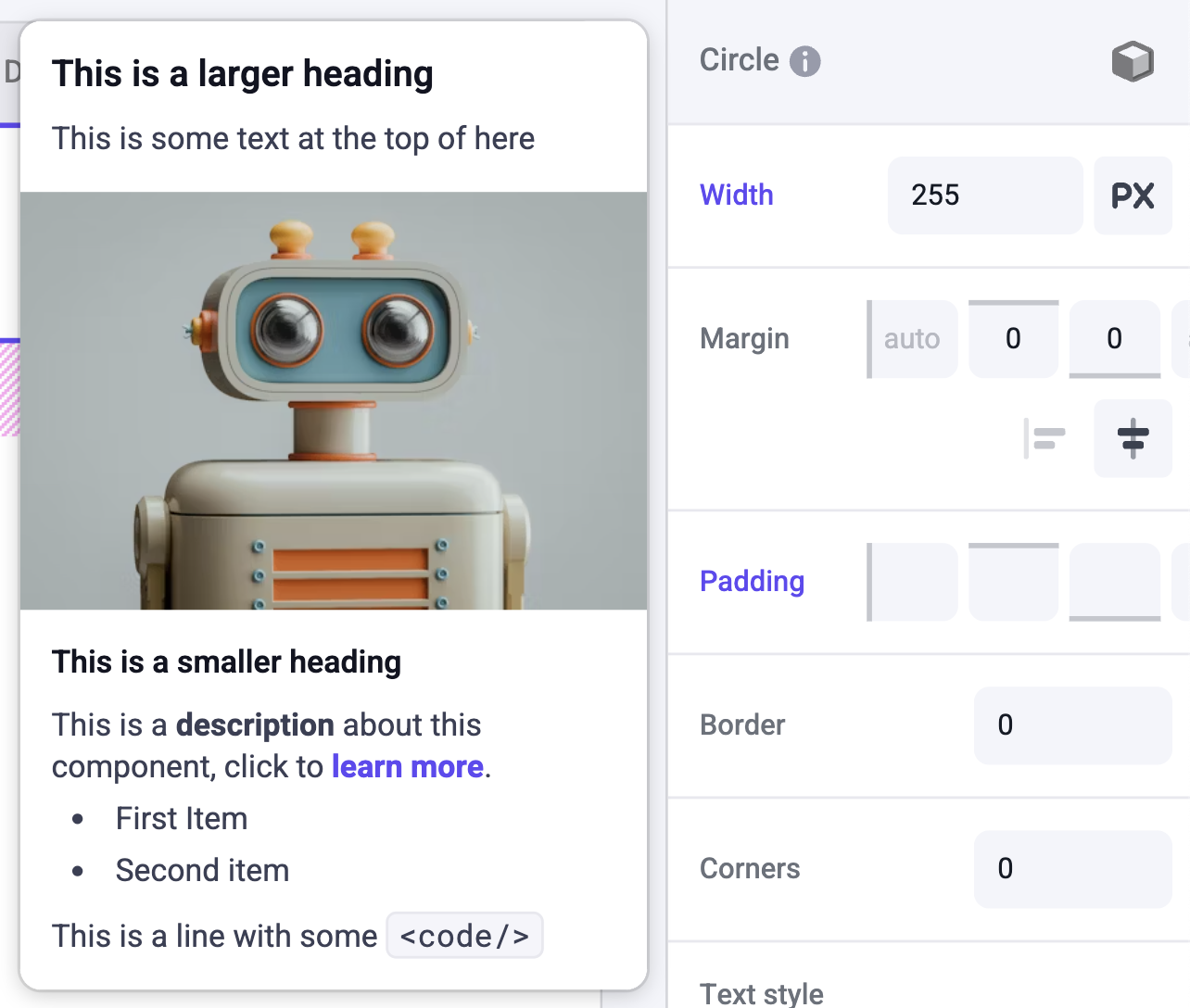
custom component description open

Descriptions that are longer than the standard tooltip will have a scrollbar to view the overflowing content.

Organizing registration code

As you register more components in makeswift/components.tsx, you may notice this file growing rather large. To keep your codebase organized, we recommend breaking out your Makeswift registration code into separate files and co-locating it with your component file.

For example, if you have a Box component, you can create a Box.makeswift.ts file next to your Box.tsx file. This file will contain the registration code for the Box component.

Makeswift does not rely on this naming convention. Feel free to use whatever naming convention you prefer.

1interface Props {
2 className?: string;
3}
4
5function Box({ className }) {
6 return <div className={className}>I'm a box!</div>;
7}

Then update your makeswift/components.tsx file to import all of the component registrations, like so:

makeswift/components.ts
1import "../../../../../components/Box/Box.makeswift";
2import "../../../../../components/Cube/Cube.makeswift";
3import "../../../../../components/Sphere/Sphere.makeswift";
4import "../../../../../components/Circle/Circle.makeswift";
5/*
6 * Add all of your component registrations here
7 */

The file makeswift/components.ts should be imported wherever you use <ReactRuntimeProvider> in your app.

Icons List

Here is the list of available icons to use when registering your component.