<MakeswiftComponent>

The <MakeswiftComponent> component takes a MakeswiftComponentSnapshot (returned from calling getComponentSnapshot) and renders React elements using components registered with the runtime.

Props

snapshot
MakeswiftComponentSnapshotRequired

The Makeswift snapshot to render.

label
stringRequired

The label of the component used in the Visual Builder.

description
string

The description shown in the Panel of the Makeswift builder. This can be written in Markdown format. Added in v0.24.8.

type
stringRequired

The type of the registered Makeswift component. This should match the type property that was used when calling registerComponent.

Example

The following examples expects that you have integrated Makeswift into your project according to the App Router Installation guide. If you have not, you may need to tweak the code snippets below to match your project setup and file structure.

The following example registers a <Header> component that is editable by the user and will be displayed on each page.
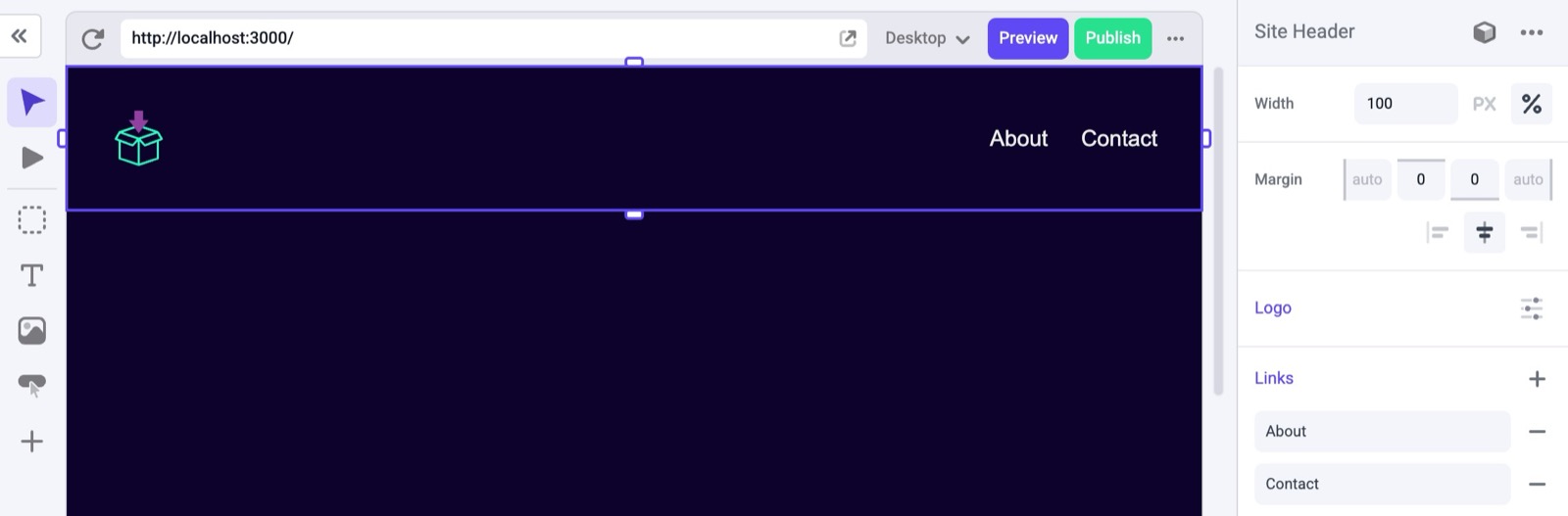
Properties of a header component in the Makeswift Visual Builder

Creating the component

First, you’ll need a React component. Here, we’re going to create one that takes three properties: className, logo, and links.

@/components/header/index.tsx
1"use client";
2
3import Image from "next/image";
4import Link from "next/link";
5
6interface Props {
7 className: string;
8 logo: {
9 src?: string;
10 alt: string;
11 width: number;
12 height: number;
13 };
14 links: Array<{
15 label: string;
16 link: { href: string };
17 }>;
18}
19
20export function Header({ className, links, logo }: Props) {
21 return (
22 <header className={className}>
23 <nav className="mx-auto max-w-6xl flex items-center justify-between gap-4 p-8">
24 {logo?.src && (
25 <div className="flex items-center justify-start self">
26 <Image
27 src={logo.src}
28 alt={logo.alt}
29 width={logo.width}
30 height={logo.height}
31 />
32 </div>
33 )}
34
35 <ul className="flex gap-6">
36 {links.map((item, i) => (
37 <li key={i} value={i.toString()}>
38 <Link href={item.link.href}>{item.label}</Link>
39 </li>
40 ))}
41 </ul>
42 </nav>
43 </header>
44 );
45}

Registering with Makeswift

Next, this component needs to be registered with Makeswift. This example registers the same three properties: className, logo, and links. Notice these property names match the property names defined in the Header component.

In registerComponent the hidden property is set to true which hides it from being listed in the Component Tray. This is because we will be hard-coding where this component will be incorporated into the page and we don’t want the user to drag and drop multiple instances of it.

@/components/header/register.ts
1import {
2 Group,
3 Image,
4 Link,
5 List,
6 Number,
7 Style,
8 TextInput,
9} from "@makeswift/runtime/controls";
10
11import { Header } from "./";
12
13import { runtime } from "../../../../../makeswift/runtime";
14
15export const HEADER_COMPONENT_TYPE = "makeswift-header";
16
17const logo = Group({
18 label: "Logo",
19 preferredLayout: Group.Layout.Popover,
20 props: {
21 src: Image({ label: "Logo" }),
22 alt: TextInput({ label: "Alt text", defaultValue: "Logo alt" }),
23 width: Number({ label: "Width", suffix: "px", defaultValue: 200 }),
24 height: Number({ label: "Height", suffix: "px", defaultValue: 200 }),
25 },
26});
27
28const links = List({
29 label: "Links",
30 type: Group({
31 label: "Link",
32 props: {
33 label: TextInput({ label: "Text", defaultValue: "Text" }),
34 link: Link({ label: "URL" }),
35 },
36 }),
37 getItemLabel: (item) => item?.label ?? "Text",
38});
39
40runtime.registerComponent(Header, {
41 type: HEADER_COMPONENT_TYPE,
42 label: "Site Header",
43 hidden: true,
44 props: {
45 className: Style(),
46 logo,
47 links,
48 },
49});

You’ll then need to import this component into your makeswift/components.ts file with the rest of your components. If you don’t already have this file, refer to the App Router Installation guide to ensure it’s created and imported in the correct places.

Rendering the component

Then, you’ll need to retrieve the snapshot of the component from the Makeswift API by calling getComponentSnapshot with a unique ID and pass that snapshot to <MakeswiftComponent>.

Here, we are adding the <Header> to the root layout.tsx file so that it shows up on each page.

@/app/layout.tsx
1import { draftMode } from "next/headers";
2import { MakeswiftProvider } from "../../../../../makeswift/provider";
3import "../../../../../makeswift/components";
4import "./globals.css";
5import { MakeswiftComponent } from "@makeswift/runtime/next";
6import { getSiteVersion } from "@makeswift/runtime/next/server";
7import { HEADER_COMPONENT_TYPE } from "../../../../../components/header/register";
8import { client } from "../../../../../makeswift/client";
9
10export default async function RootLayout({
11 children,
12}: Readonly<{
13 children: React.ReactNode;
14}>) {
15 const myHeaderSnapshot = await client.getComponentSnapshot(
16 `my-header-id`, //unique identifier of the component rendered on the page
17 { siteVersion: await getSiteVersion() }
18 );
19
20 return (
21 <html lang="en">
22 <body>
23 <MakeswiftProvider siteVersion={await getSiteVersion()}>
24 <MakeswiftComponent
25 snapshot={myHeaderSnapshot}
26 label={`Site Header`}
27 type={HEADER_COMPONENT_TYPE}
28 />
29 {children}
30 </MakeswiftProvider>
31 </body>
32 </html>
33 );
34}

The header should now be visible on each page within the Visual Builder.
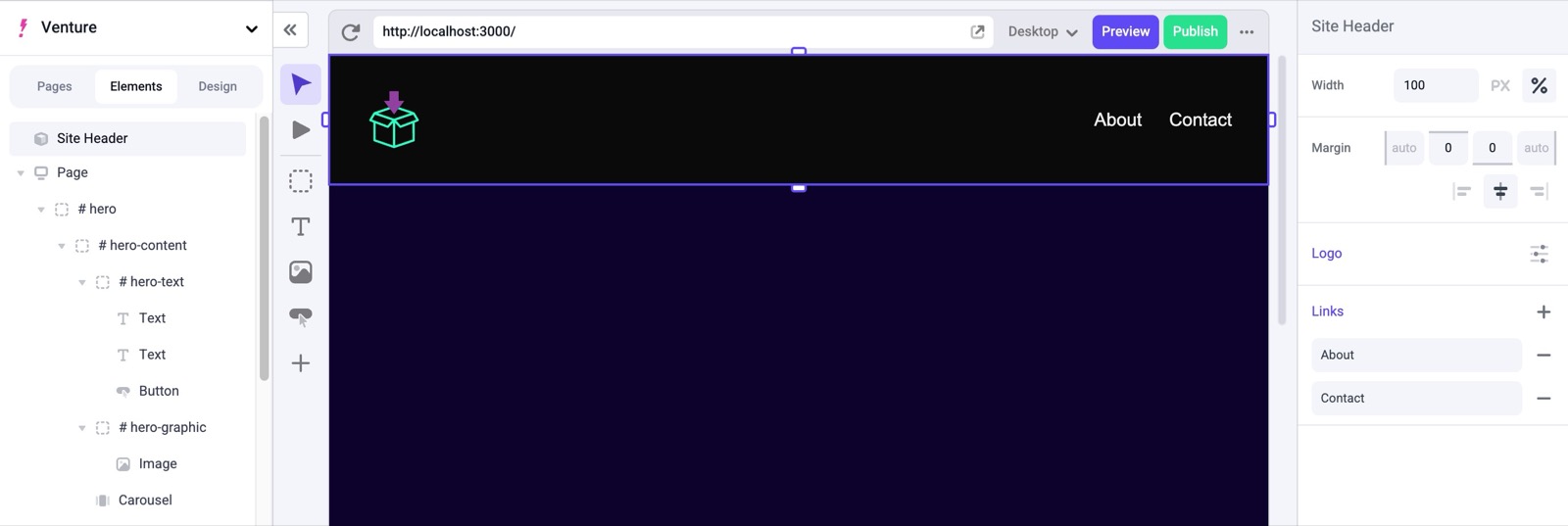
Header component showing on a page in the Makeswift Visual Builder

Adding a description

We can define a description string using markdown formatting, and then in this `layout.tsx’ we can add the description field.

1const mdDescription = `
2# Site Header Description
3
4![Site Header Example](https://mintlify.s3.us-west-1.amazonaws.com/makeswift/images/developer/reference/makeswift-component/header-example.jpg)
5
6Find out how you can \`create\` a *header* like the **example** above.
7
8## Styles, Logo and Links
9
10This component has the following controls:
11* Width
12* Margin
13* Logo
14* Links
15 * You can add multiple links!
16
17Click this [link](https://docs.makeswift.com/product/getting-started/introduction) to learn more!
18`
@/app/layout.tsx
1...
2
3 <MakeswiftComponent
4 snapshot={myHeaderSnapshot}
5 label={`Site Header`}
6 type={HEADER_COMPONENT_TYPE}
7 description = {mdDescription}
8 />
9...

You should now be able to see an info icon next to the label when selecting the component in the Visual Builder. To view your description, simply hover over the label and the popover will open.
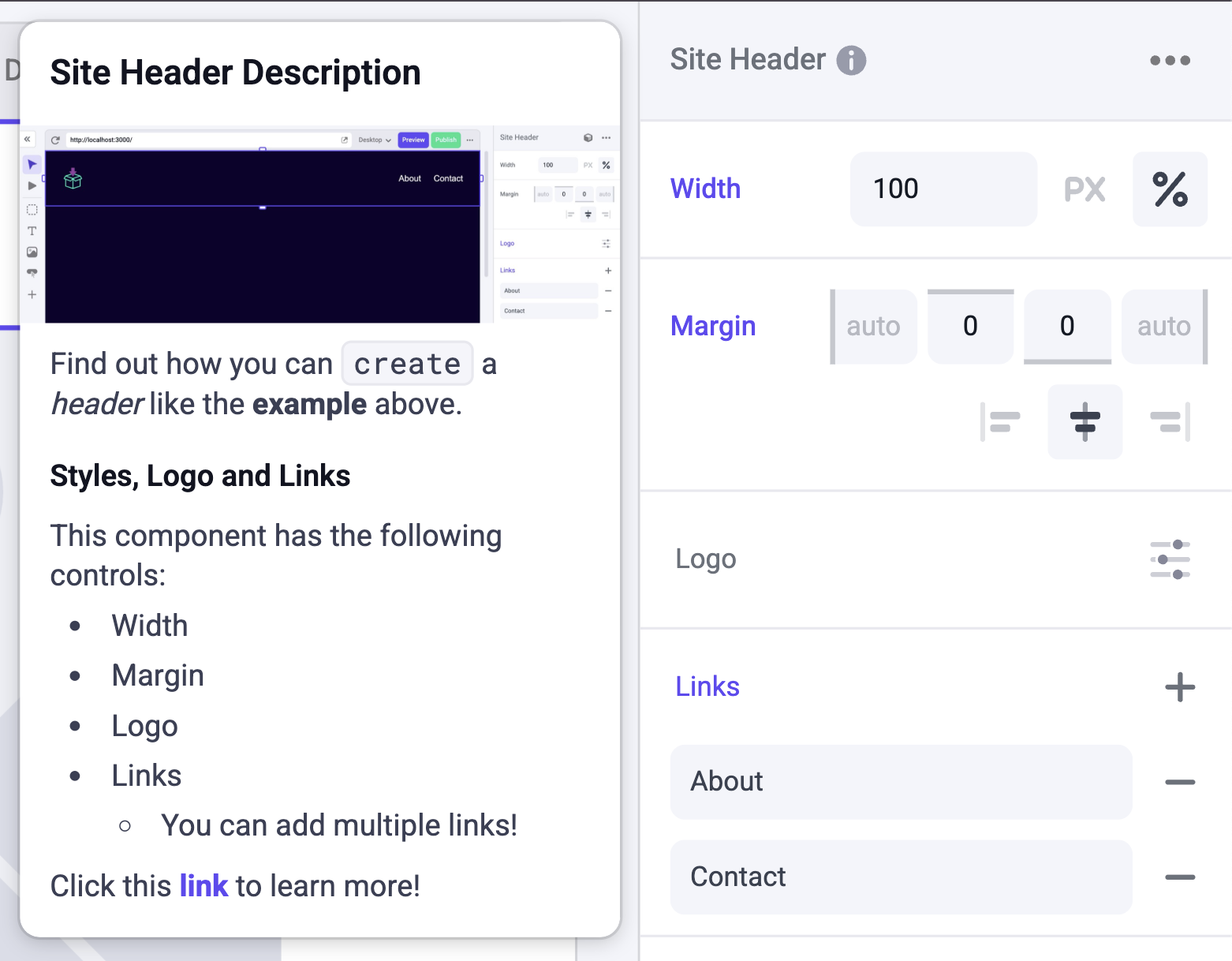
Site header description open